Relative, absolute, fixed, static positioning
- position is actually outside of margin
- https://appbrewery.github.io/css-positioning/
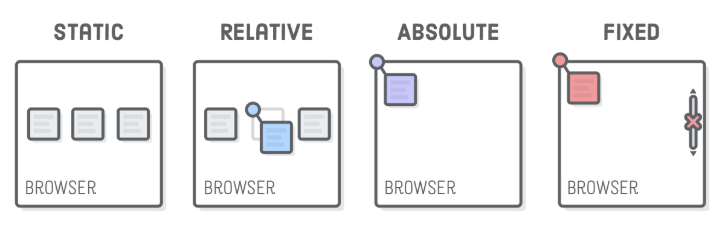
Static
- The HTML default
- just goes to the bottom of whatever previous element there us
- you can add left/right/top/bottom values but it won’t really do anything
Relative
- relative to its DEFAULT position.. you can move it relative to where it should be!
Absolute
- top left corner of nearest positioned ancestor OR top left corner of webpage
- A positioned ancestor
- any ancestor element (parent, grandparent, etc) that has a
positionvalue other thanstatic relativemost commonly used
- any ancestor element (parent, grandparent, etc) that has a
<div class="parent">
  <div class="nested"></div>
</div>
.parent {
position: relative; /* it's a positioned ancestor */
background: blue;
}
.nested { /* will be positioned relative to parent's top left corner */
position: absolute;
background: coral;
}Fixed
- relative to the top left corner of the browser
- defaulted to the browser!
Example of child elements relative to their parent
- If you want to position child elements relative to their parent, you should set:
Parent: position: relative;Children: position: absolute;
- When a child has
position: absolute;, it looks for the nearest positioned ancestor (an element with relative, absolute, or fixed positioning). - If the parent has
position: relative;, the children will be positioned inside the parent instead of the whole page.
Z-Index
- determines which elements goes on top of which in the z-axis
- everything on screen has default of
z-index: 0- but when you set something in absolute position, it actually puts it in ANOTHER LAYER
- when absolute, you can set the index to -1 or 1 to make it behind/above the main layer but it cannot go in the main layer where everything is 0
Some thoughts
- Parent -
relative, Children -absoluteis a common structure - If a child takes up the same width/height as the parent, use 100% instead of copying px values
- CSS
positioncomes withtop,bottom,left, andrightand these only work whenpositionis notstatic - Most browsers apply default margins to
<p>, <h1>, <h2>, etc.- If you see unexpected gaps in your layout, check the default margins of text elements and remove it.
- margin collapsing
inline-blockhas no margin collapsing (so the margins DO NOT overlap)