Not critical/fundamental, but very useful!
- Helps us view between different things we can compare in a repo (commands, branches, files, areas, etc)
- We often use
git diffalongside commands likegit statusandgit log, to get a better picture of a repo and how it has changed over time- doesn’t impact anything, just a purely INFORMATIVE COMMAND
- Useful when:
- You made a BUNCH of changes and you don’t remember what you did lmao
- Compares Staging Area and Working Directory
Reading the output of git diff
git diff- lists all the changes in our working directory that are NOT staged for the next commit
- Let’s say we have new changes (added indigo and violet) that are not added
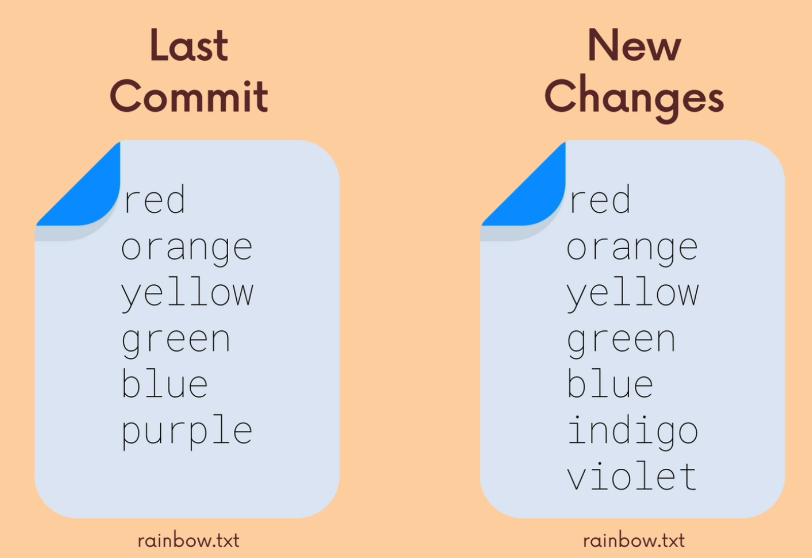
- Then when we
git diff, we get this: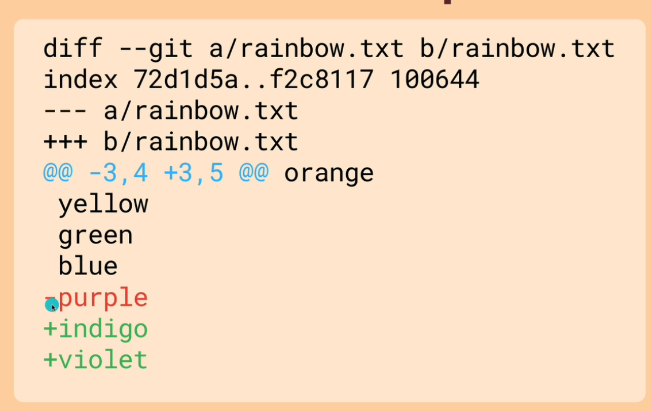
diff --git a/rainbow.txt b/rainbow.txt→ files to be compared- usually the same file, just 2 versions (git declares one file as
Aand the other as `B)
- usually the same file, just 2 versions (git declares one file as
index 72d1d5a..f2c8117 100644- metadata (just ignore it)
--- a/rainbow.txtand+++ b/rainbow.txt- They get assigned each a symbol
--- a/rainbow.txt: For filea, changes will be indicated with-+++ b/rainbow.txt: For fileb, changes will be indicated with+
- The rest
- You can see a little bit of context before and after the change
- The header:
@@ -3,4 +3,5 @@- From file
a, 4 lines are extracted (as a chunk) starting from line 3 - From file
b, 5 lines are extracted starting from line 3
- From file
orangethere is just lie 2 lol
git diff VS git diff --cached VS git diff HEAD
git diff- This will show the difference between your working directory (which has the new change) and the staging area (which doesn’t have the new change).
- only shows changes in tracked files
- New files that haven’t been added to Git yet are considered untracked
- See git workflow
The differences
git diffshows what’s not yet stagedgit diff HEADshows all modifications, regardless of staginggit diff --cachedshows what’s staged and ready to be committed
Example
- Scenario
- Start with a clean state (everything committed)
- Modify file A and stage it
- Modify file B but don’t stage it
- The commands
git diffwill show only changes in file B (unstaged changes)git diff HEADwill show changes in both file A and B (all changes since last commit)git diff --cachedwill show only changes in file A (staged changes)
JUST REMEMBER THIS
- What changes are you still working on? (git diff)
- What added changes are ready to be committed? (git diff —cached)
- What’s the total set of changes you’ve made? (git diff HEAD)
Using a GUI
Using a GUI shines in applications like this
- Example
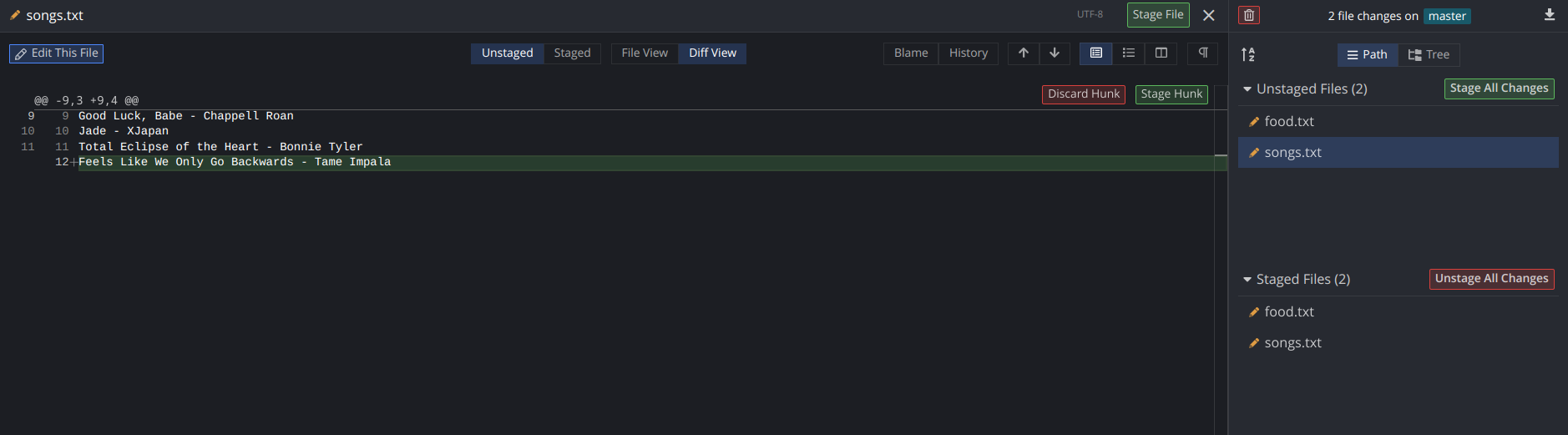
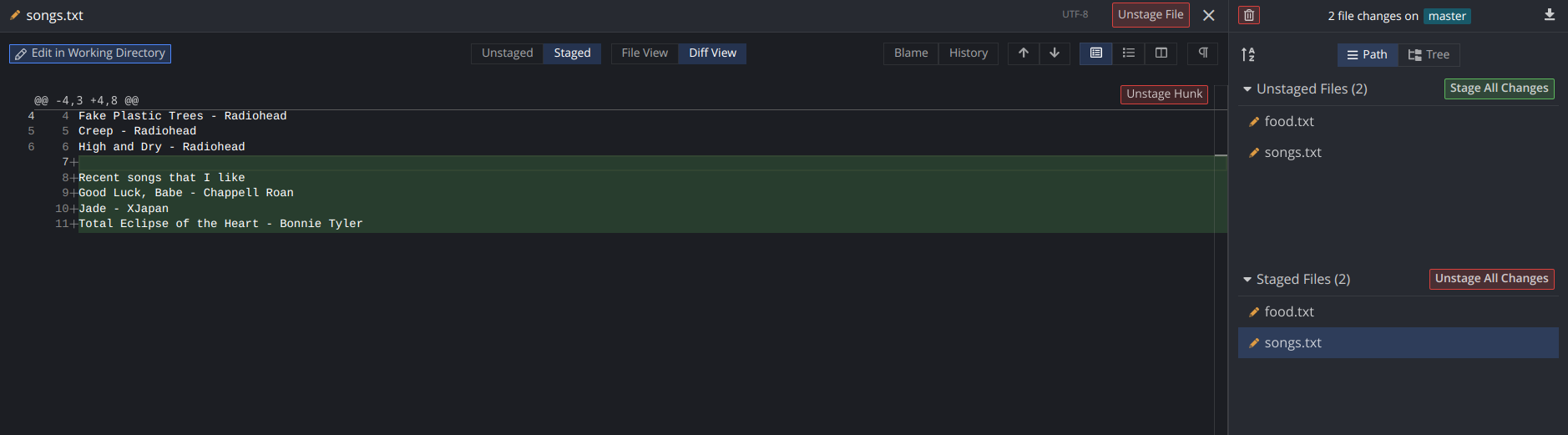
- Showing diff in 2 commits
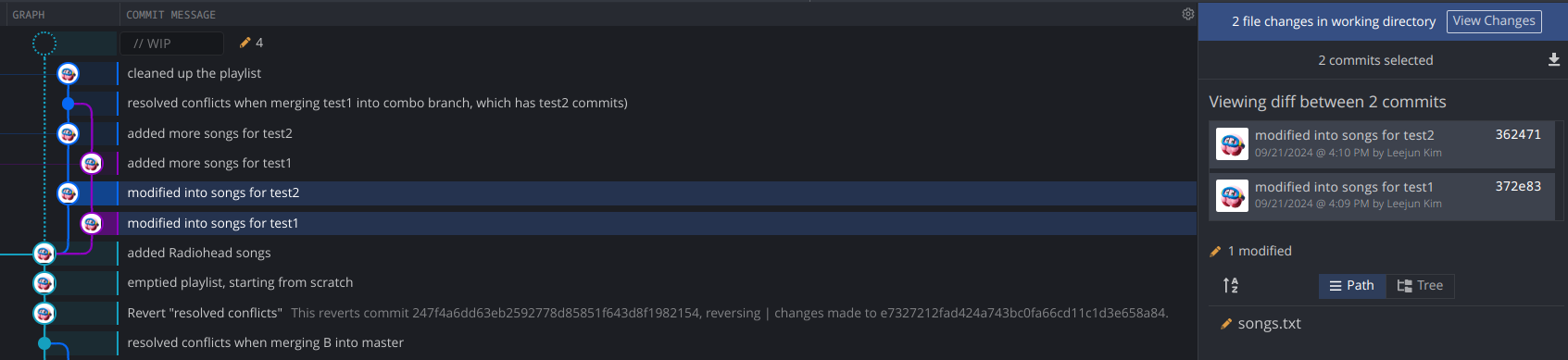 - Just press shift